Product
Introduction
In order to be able to create many products with the minimum amount of time, we have include an excel import feature that will allow you to prepare you product to create or to update in an excel.
Partial import are not fully supported. This will be fix but in the meantime for update be sure to have an excel with all the data of your products. Field that we know can be erased with a partial update:
- manufacturer
- Commercial Informations
Process
In order to be imported, the excel should follow some rules:
Products will be search in a sheet named Products. Headers are formatted and should be in one of those:
| header | value format | mandatory |
|---|---|---|
| ID | Text url compatible | Always |
| Reference | Text | On creation |
| Product Type | Text, should be one of the known product type. Refer to the utility sheet | On creation |
| Brand | Text, should be one of the known brand. Refer to the utility sheet | On creation |
| Manufacturer | Text | No |
| Parent Product ID | Text | No |
| Start Date | Date, MM/DD/YYYY | No |
| End Date | Date, MM/DD/YYYY | No |
| Search Score | Number >= 0 | No |
| Name (en-GB) | Text, the locale between parenthesis precise the locale in which the column will fill the value | No |
| Commercial Description (en-GB) | Text, the locale between parenthesis precise the locale in which the column will fill the value | No |
| Short Description (en-GB) | Text, the locale between parenthesis precise the locale in which the column will fill the value | No |
| Eco Description (en-GB) | Text, the locale between parenthesis precise the locale in which the column will fill the value | No |
| Website URL (en-GB) | Text, the locale between parenthesis precise the locale in which the column will fill the value | No |
| Price | Number | No |
| Price Currency | Text, should be one of the known currencies. Refer to the utility sheet | No |
| Price Type | Text, can be one of the known price type. Refer to the utility sheet | No |
| Price Start Date | Date, MM/DD/YYYY | No |
| Price End Date | Date, MM/DD/YYYY | No |
| Price Additional Informations | Text of a json. fields can be found here: setup pricing | No |
| Pricing Method | Text, can be one of the known pricing Method. Refer to the utility sheet | No |
| Pack Amount | Number | No |
| Percentage | Number | No |
| Direction Parameter | Text, should be width or height or depth | No |
| Direction Parameters | Text, should be one of the known Direction Parameters. Refer to the utility sheet | No |
| Rounding Method | Text, should be one of the known Rounding Method. Refer to the utility sheet | No |
| Not Priced On Front Edge | Boolean | No |
| Model 3D HQ | Text url. Should be a valid url. | No |
| Model 3D MQ | Text url. Should be a valid url. | No |
| Model 3D LQ | Text url. Should be a valid url. | No |
| Model 2D | Text url. Should be a valid url. | No |
| Thumbnail | Text url. Should be a valid url. | No |
| Media | Text url. Should be a valid url. Can be several urls, they should be separated with a space | No |
| Style Tags | Text, should be one or more of the known Style Tags. Refer to the utility sheet. If more that one, they should be separated with ; | No |
| Room Tags | Text, should be one or more of the known Room Tags. Refer to the utility sheet. If more that one, they should be separated with ; | No |
| Color Tag | Text, should be one of the known Color Tag. Refer to the utility sheet | No |
| Material Tags | Text, should be one or more of the known Material Tags. Refer to the utility sheet. If more that one, they should be separated with ; | No |
| Free Tags | Text, should be one or more of the known Free Tags. Refer to the utility sheet. If more that one, they should be separated with ; | No |
| Target Position | Text, should be one of the known Target Position. Refer to the utility sheet | No |
| Opening Shape | Text, should be one of the known Opening Shape. Refer to the utility sheet | No |
| Default Altitude | Number > 0 | No |
| Manip Mode | Text, should be one of the known Opening Shape. Refer to the utility sheet | No |
| Ungroupable | Boolean | No |
| Allow Collision | Boolean | No |
| Modular | Boolean | No |
| Replaceable | Boolean | No |
| Code | Text | No |
| Code Manufacturer | Text | No |
| Configurator Id | Text, should be one of the known Configurator Id. Refer to the utility sheet | No |
| Configuration Data | Text | No |
| Catalog Ids | Text, should be one or more of the known Catalog ids. If more that one, they should be separated with ; | No |
| Force | Boolean | No |
| Is Generic | Boolean - True converts a classic product to generic; False on an existing generic product raises a non-blocking warning (field ignored) | No |
The template is available to be downloaded when clicking to the DOWNLOAD IMPORT TEMPLATE and then check the product:
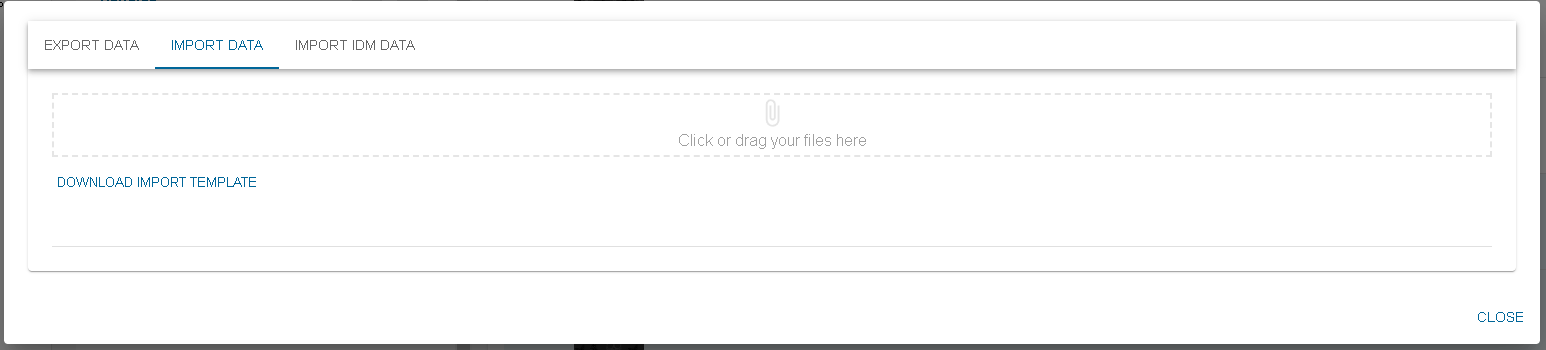

Then click on DOWNLOAD
Once you have filled your excel with the data you want to import, you can now drop it into the drag and drop location ( you can also click and search your file through the explorer)
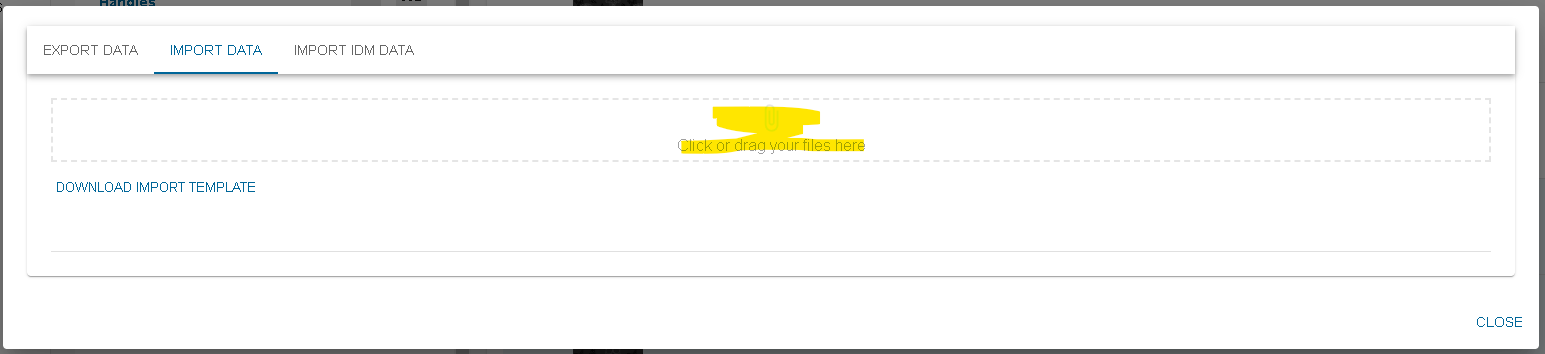
A preview of what will be imported is shown :

In this table, you are able to have a last look at your data before uploading them for real. A validation is done in order to minimize the possible webservice error after launching the import. If an issue is found on a line, an error icon appears at the beginning of the line. More information is shown when hovering the error icon.

in this example, we can see that the first id does not follow an url valid pattern. The error icon is therefore present, and the user is warn of what error is present.
If a line is on error, you will not be able to click on launch import.
When launching the import, a success icon appears on the lines that are really imported. Also, if an issue happened when calling the webservice, the error icon will appear. Hovering it will show you the webservice error. If an error icon appears after launching the import, it means that the line was not imported.
Update mode
The Update mode field of the import dialog decides what a blank cell does on an existing product. You can change the mode using dropdown shown below in image. The preview is then validated again when mode is changed.

Partial update
- Partial update mode is previous default mode of import.
Partial update with delete
- Column not in the excel: the field is not modified.
- Column in the excel, cell filled: the field is updated.
- Column in the excel, cell blank: the current value is removed.
- Reference, Brand, Product Type: required on a product without a parent product. A blank cell puts the row
in error.

- Search Score: a blank cell sets it to
0. - Parent Product ID: a blank cell does not remove the link to the parent product.
Override management
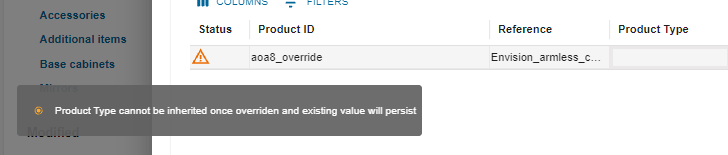
A child product inherits the values of its parent product, except for the fields it overrides (see Overrides). On a child product, Overridden field with a blank cell makes the field inherited again with some fields have exceptions as mentioned in the below table. And, Inherited field with a blank cell changes nothing. When a field cannot become inherited again, the preview shows a warning. It does not block the import.
Refer below table to understand behaviour of blank cell on an overridden field:
| Sheet | Columns | What a blank cell does |
|---|---|---|
| Products | Reference, Brand, Manufacturer, Free Tags, Media | The field becomes inherited again. |
| Product representation: Model 3D HQ, Model 3D MQ, Model 3D LQ, Model 2D, Thumbnail | The group becomes inherited again, but only if all the columns of the group are in the excel and blank. If one of them is filled or missing, the group stays overridden. See groups of columns for more information. | |
Behaviors: Target Position, Opening Shape, Default Altitude, Manip Mode, Ungroupable, Allow Collision, Modular, Replaceable | ||
| BOM settings: Code, Code Manufacturer | ||
| Name, Commercial Description, Short Description, Eco Description, Website URL | The value will be removed for the language. If all 5 fields of a language are empty after the import, the whole language will be removed. Once all the languages are removed, the commercial description becomes inherited again. See commercial description for more information. | |
| Start Date, End Date | The date will be inherited from the parent product. | |
| Catalog Ids | The child product will be delinked from all its catalogs. | |
| Search Score | The search score will be set to 0. | |
| Style Tags, Color Tag, Room Tags, Material Tags | The tags are emptied on the child product. They stay overridden and cannot become inherited again, so the preview shows a warning. See classifications for more information. | |
| Product Type | The current product type is kept. It stays overridden and cannot become inherited again, so the preview shows a warning. See product type for more information. | |
| Assets | Model 3D HQ, Model 3D MQ, Model 3D LQ, Model 2D, Thumbnail, Media | If product sheet is present then behaviour will depend on product sheet data. To make fields inherited again, leave the cells blank in the Products sheet instead. If Product sheet is not present then keep asset sheet fields blank to inherit. |
| Mappings, Prices, Parameters | All the columns, except the parameter definition columns | Blank cells do not make the section inherited again: it stays overridden. To make it inherited, mark all the items of the child product as deleted (Delete column set to |
Parameters linked to a parameter definition | Parameter Translation Key, Value Translation Key | Leave both cells blank to make the translation keys inherited from the parameter definition again. If only one of the two cells is blank, the translation keys stay overridden. See linked parameter definition for more information. |
| Editable, Default, Values, Magnitude, Allow any value, Tags, Free Tags, Step, Index UI | Leave a cell blank to make that column inherited from the parameter definition again. For example, a blank Default inherits the default value of the parameter definition, and the other columns stay as they are. See linked parameter definition for more information. |
Groups of columns
Some columns work together as a group, they are overridden and inherited together.
- Make the group inherited: put all the columns of the group in the excel, all blank. Otherwise, the group stays overridden and only the columns of the excel are updated.
- Make the group overridden: fill at least one column of the group. The whole group is then overridden.
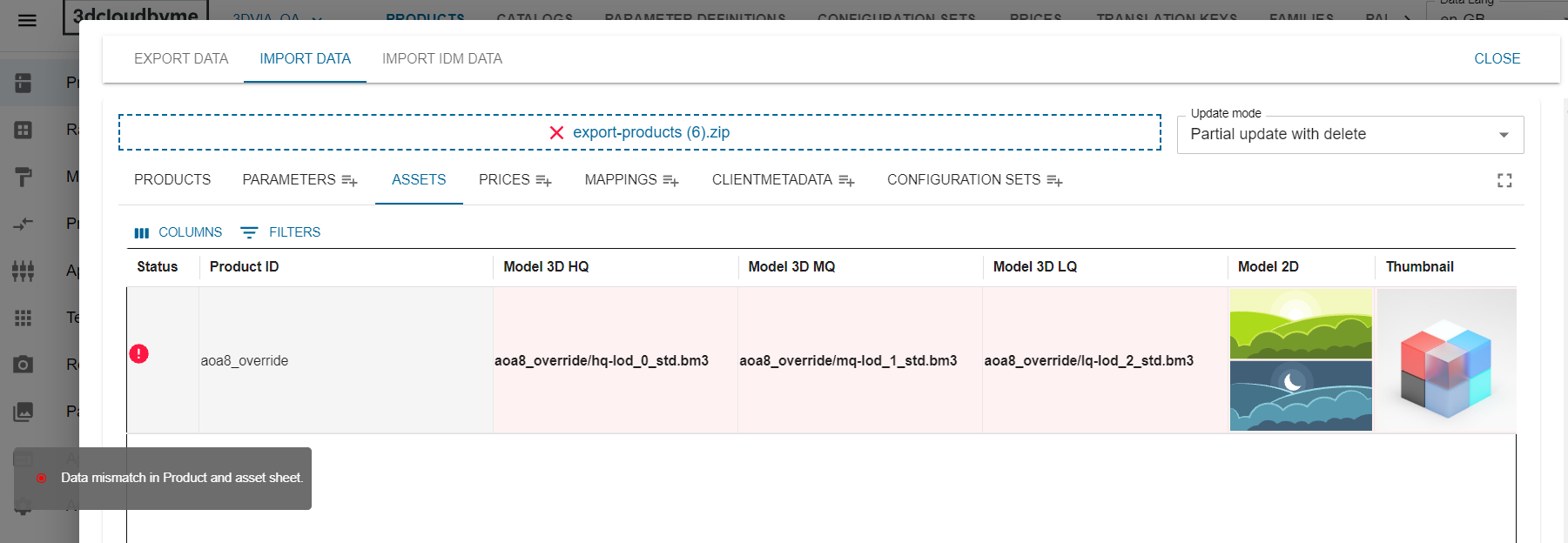
These columns are present in product as well as in Assets sheet, when product and asset sheet both are present then only the Products sheet can make them inherited again. As URLs information in product sheet and asset sheet for 2D, 3D and thumbnail assets is different, If both sheets fill the same column for the same product, the Assets row is in error to indicate that data is mismatch.
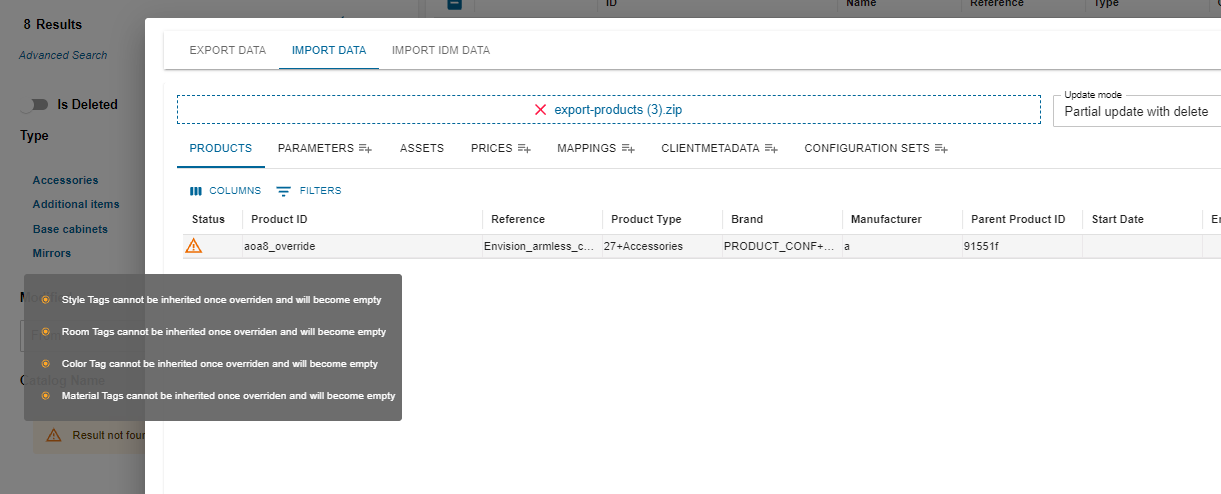
Once overridden, Style Tags, Color Tag, Room Tags and Material Tags cannot become inherited again. A blank cell saves them as empty, and the preview shows a warning.
Free Tags have their own override, so they can become inherited again even when the other tags cannot. If the parent product has no free tags, they are just emptied.
Once overridden, Product Type cannot become inherited again. A blank cell keeps the current product type, and the preview shows a warning.
Commercial description
The commercial description of a product is stored per language. Each language has 5 fields: Name,
Commercial Description, Short Description, Eco Description and Website URL. In the excel, each field has one column per language. The language is written between parentheses, for example
Name (en-US) or Short Description (fr-FR).
Check below rules applied to Partial update with delete mode.
Product without a parent product
- A blank cell empties that field.
- The language is never removed from the product.
Child product that inherits the commercial description
- Blank cells change nothing: the commercial description stays inherited.
- As soon as one cell is filled, the commercial description becomes overridden. The child product then has only the values of the excel. The other languages of the parent product are not copied.
Child product that overrides the commercial description
- A blank cell empties that field.
- A language is deleted when all its 5 fields (Name, Commercial Description, Short Description, Eco Description, Website URL) are empty after the import. To decide, the import looks at each field:
- Column in the excel: the value of the excel is used. A blank cell counts as empty.
- Column not in the excel: the value already saved on the product is used. So you do not need all 5 columns in the excel to remove a language. The columns you left out must be saved as empty on the product.
- When the last language is removed, the commercial description becomes inherited again.
Examples
| Product | Before the import | Excel | After the import | Description |
|---|---|---|---|---|
| Child product that overrides the commercial description | Two languages: | The 5 columns of de-DE, all blank. |
| All 5 fields of |
One language: | Only 3 columns: |
| Eco Description and Website URL are not in the excel, but they were already empty. With the 3 blank columns, all 5 fields are empty after the import, so the language is removed. | |
One language: en-US (Name "Sofa", Short Description "Blue sofa"). | Only one column: Name (en-US), blank. | en-US is kept, with an empty Name and Short Description "Blue sofa". | Short Description is not in the excel and is still filled. Not all 5 fields are empty, so only the name is removed and the language stays. | |
| Product without a parent product | Two languages: en-US (Name "Sofa") and de-DE (Name "Sofa"). | Only one column: Name (de-DE), blank. | The name of de-DE is emptied. de-DE is kept. | On a product without a parent product, a language is never removed. Only the field is emptied. |
| Child product that inherits the commercial description | The commercial description is inherited from the parent product: | Only one column: Name (en-US) = "Sofa". | The commercial description is now overridden, with only | One filled cell is enough to override the commercial description. The child product then keeps only the values of the excel. Nothing is copied from the parent product. |
Parameters, mappings and prices
Each row of the Parameters, Mappings and Prices sheets is one item. Here, the rows decide inheritance, not the blank cells:
-
Delete an item: set the Delete column to
trueon its row. -
Make the section inherited: list all the items of the child product in the excel and mark each of them as deleted (Delete set to
true). If only some items are marked as deleted, the section stays overridden.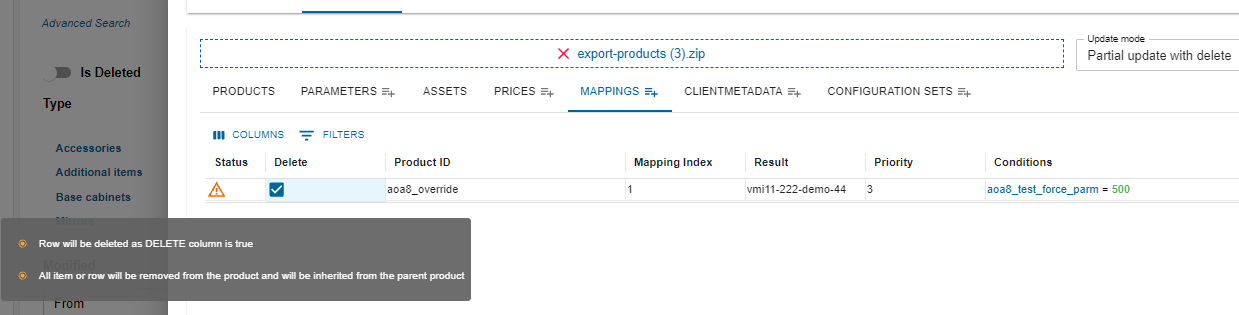
-
Make the section overridden: add an item, or edit an inherited item. The section becomes overridden.
In Partial update mode, marking all the mappings of an overridden child product as deleted makes the mapping section inherited again. A mapping section cannot stay overridden with no mapping in it.
Linked parameter definition
A parameter definition is a parameter you create once and reuse on many products. In the Parameters sheet, fill the Parameter Definition ID column to link the parameter to a parameter definition.
A linked parameter inherits its values from the parameter definition, unless you override them on the product. In Partial update with delete mode, a blank cell removes the overridden value, and the column becomes inherited from the parameter definition again.
- These columns update without any dependency: Editable, Default, Values, Magnitude, Allow any value, Tags, Free
Tags, Step and Index UI. For example, if the parameter definition has a default of
600and the product has800, a blank Default sets it back to600. It does not change the other columns. - Translation keys reset together: Parameter Translation Key and Value Translation Key become inherited from the parameter definition only when both cells are blank. For example, if only Value Translation Key is blank, the translation keys stay overridden.