Product Catalog
Introduction
Products can be added into catalogs. This management is now possible with excel import.
Process
In order to be imported, the excel should follow some rules:
-
product catalogs will be search in sheet named "Catalogs".
-
Headers are formatted and should be in one of those:
header value format mandatory Product Catalog ID Text Always Name Text No App Distribution Text, can be several app distrib separated by "+" No Shared Mode Text No Products Text, can be several products separated by "+" No
First of all, if you get the sheet from export from configuration set dashboard, you won't get any of the product columns and it is normal because product columns concerned only the configuration set when it is attached to a product.
In order to have the product columns taken into account, you need to have the product id columns fill in.
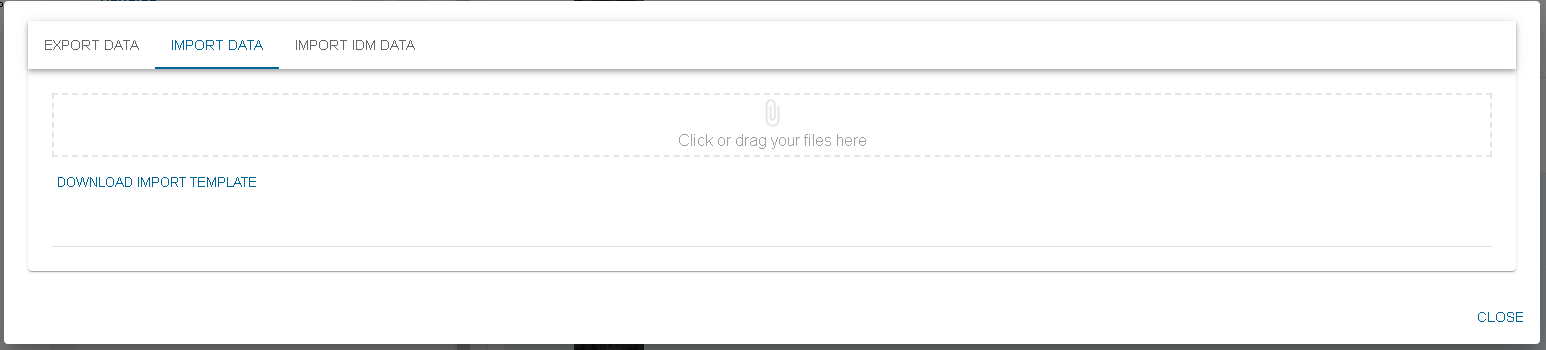
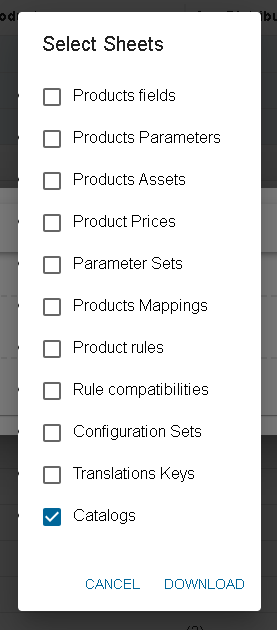
Then click on DOWNLOAD
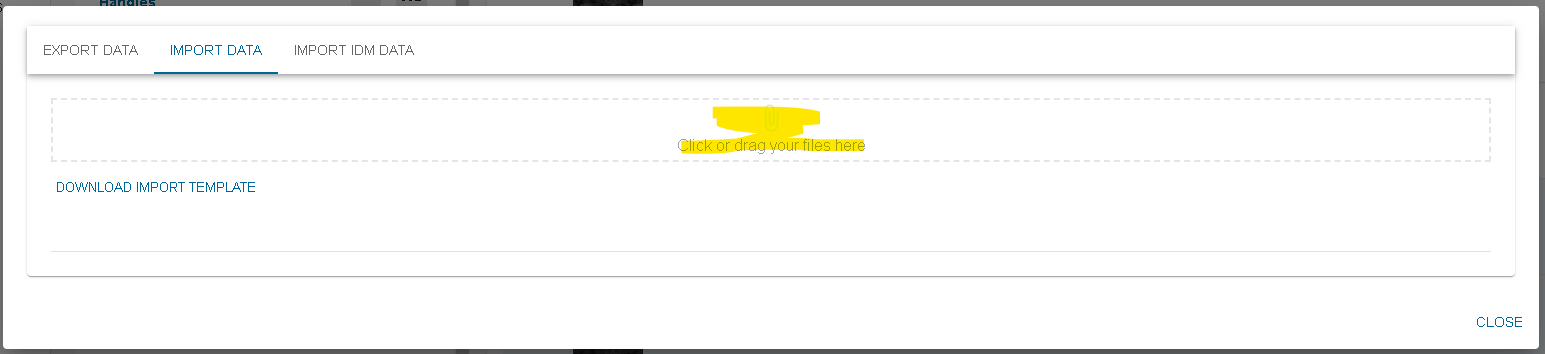
Once you have filled your excel with the data you want to import, you can now drop it into the drag and drop location ( you can also click and search your file through the explorer)
A preview of what will be imported is shown :
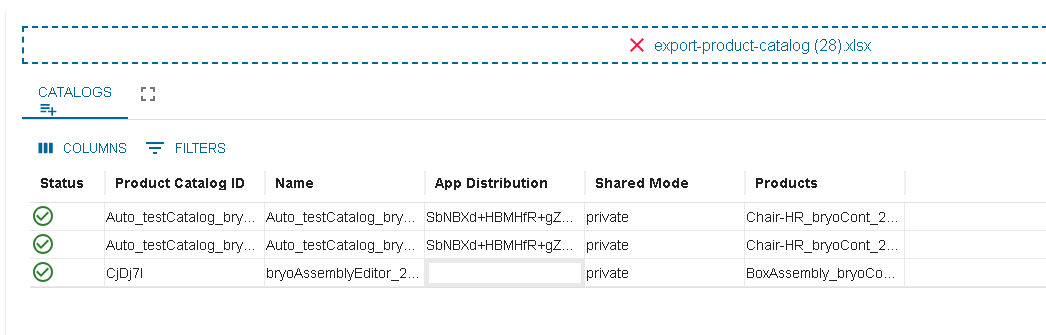
In this table, you are able to have a last look at your data before uploading them for real. A validation is done in order to minimize the possible webservice error after launching the import. If an issue is found on a line, an error icon appears at the beginning of the line. More information is shown when hovering the error icon.
If a line is on error, you will not be able to click on launch import.
When launching the import, a success icon appears on the lines that are really imported. Also, if an issue happened when calling the webservice, the error icon will appear. Hovering it will show you the webservice error. If an error icon appears after launching the import, it means that the line was not imported.