Prices
Prices among products can have an id. When they do, they are automatically shown inside this dashboard.
Edition
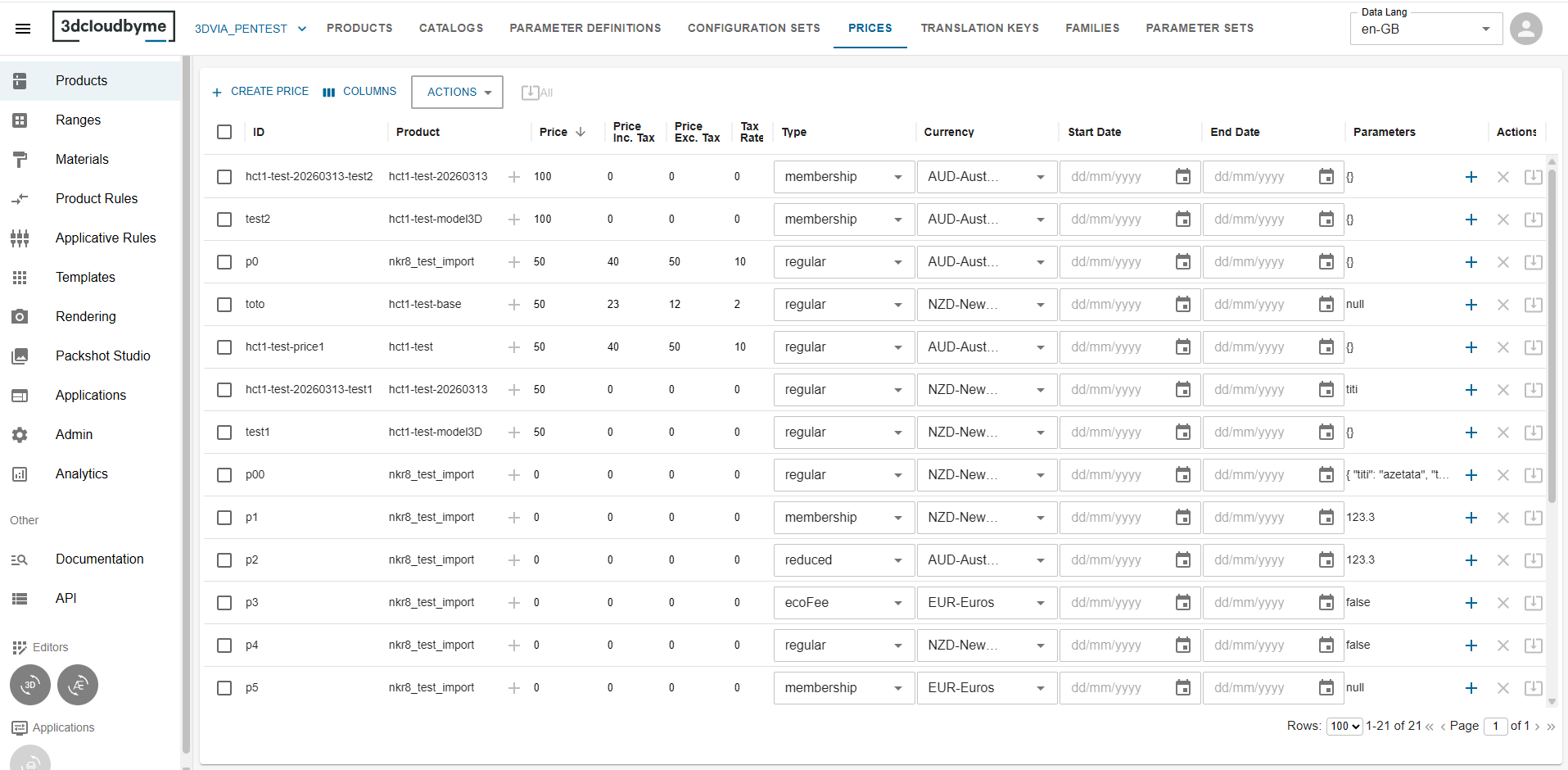
All the edition is done inside the datagrid. Since the price object is not a complicated object we did not made a specific page in order to edit it. Click on the cells to edit the specific cell.
Once edition is done, at first, it is only done in local. In order to push your modification you need to click on the
 icon.
icon.
If several rows have a modification, then you can submit all with this icon at top of the
datagrid: 
With the cross icon, you clear the modification for 1 row.
There is only 1 product per price, the product can be changed by writing down the new id and submit or clicking on the + icon to open product selection.
For Parameters, click on the + icon, a dialog will open to let you modify the json.
Price including / excluding taxes, tax rate
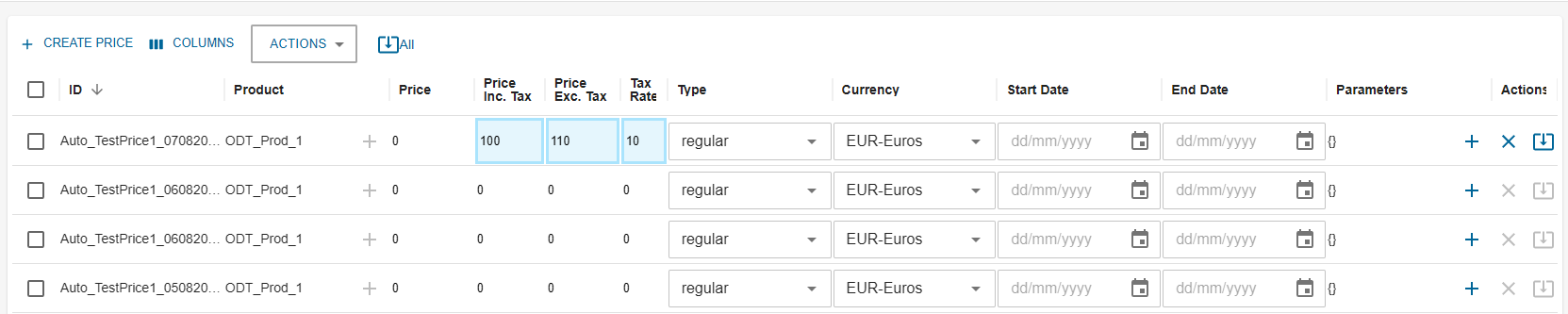
Three optional columns are available to store tax-related amounts alongside the main Price value:
| Column | Description |
|---|---|
| Price Inc. Tax | Price amount including taxes. |
| Price Exc. Tax | Price amount excluding taxes. |
| Tax Rate | Tax rate expressed as a percentage (for example, 20 for 20%). Must be a number between 0 and 100. |
These fields are optional. Edit them directly in the datagrid like any other price column.
If Tax Rate is outside the 0-100 range, the cell is marked as invalid and tooltip with error is shown.

The same columns are available on the Prices section of the product form.
Export Prices
Actions
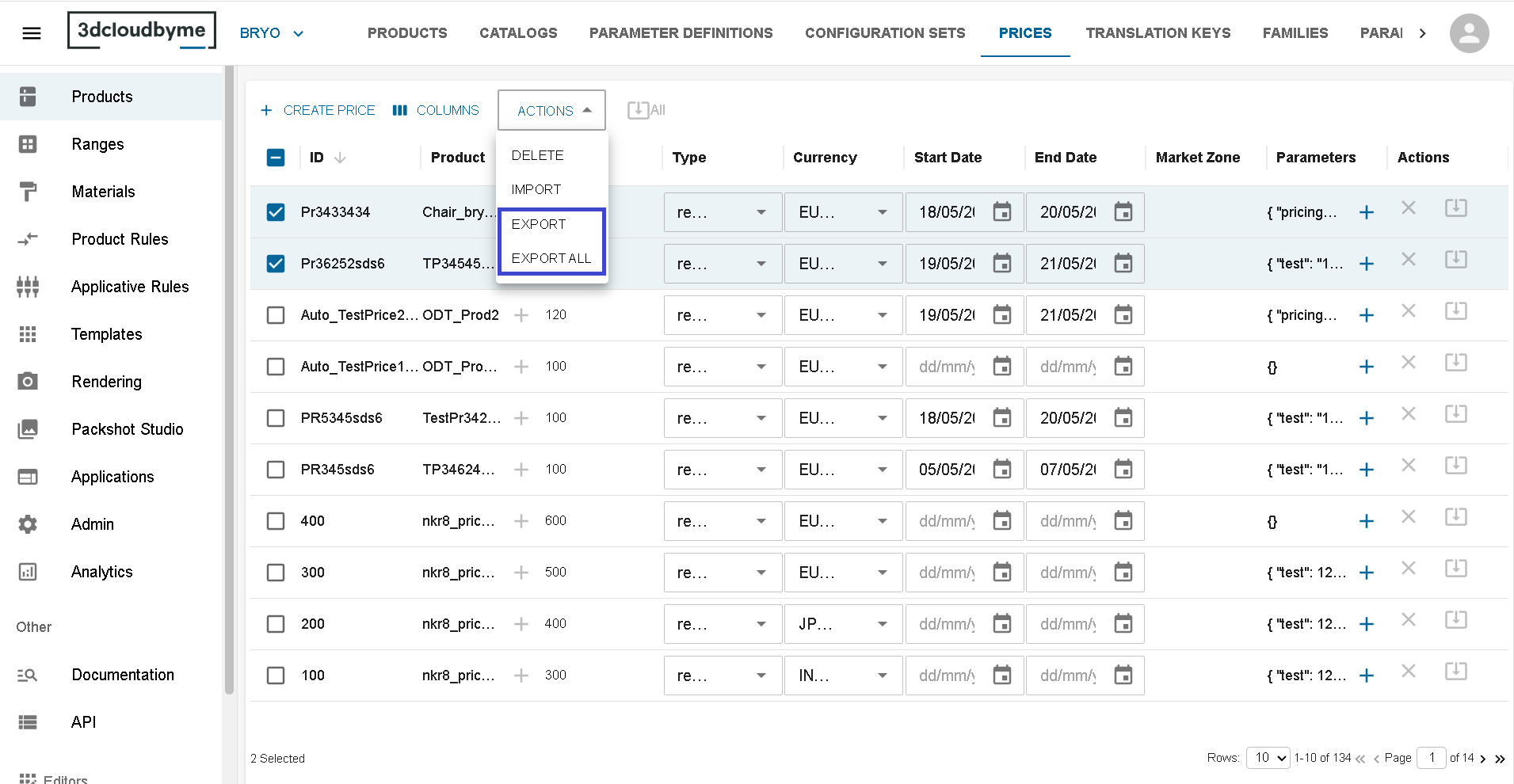
You can export prices in two ways:
-
Export: Export only the currently selected prices
- Select one or more prices in the datagrid
- Click the export button to open the export dialog
- Configure your export options and confirm
-
Export All: Export all prices in the current view
- Click the "Export All" button at the top of the datagrid
- This will open the export dialog with all prices pre-selected
- Configure your export options and confirm
Export Dialog
The price dashboard now includes an export dialog that allows you to customize how price data is exported. This dialog behaves similarly to the Prices section in the Product Export Dialog.
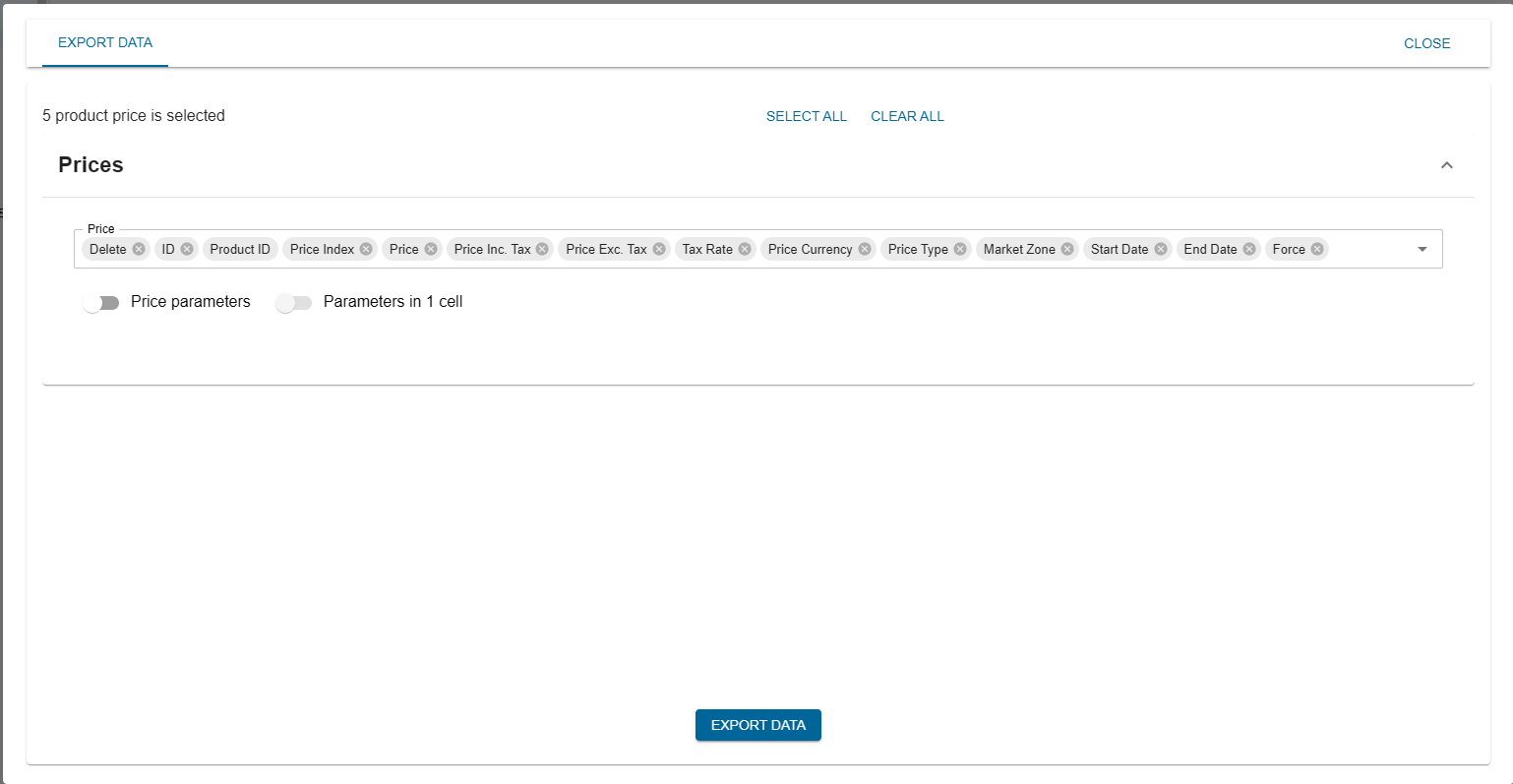
Export Options
Price Parameters
- A "Price parameters" switch is available
- When enabled, you can choose between two export modes:
- Dynamic columns (default): Price parameters are exported as separate columns
When using dynamic columns:
- Each price parameter becomes a separate column
- When using dynamic columns mode, only object-type parameters will be exported. Any non-object parameters (arrays, null values, strings, numbers, or booleans) will be ignored. The export dialog will display a warning listing all ignored non-object parameters`s price Id.
- Column names follow the format:
<field name> (price parameters - <field type>)- Field types can be:
number: For numeric valuesstring: For text valuesobject: For complex objects (exported as JSON strings)auto: For mixed types (exported with appropriate formatting)boolean: For true/false values
- Parameters in 1 cell: All price parameters are exported as a single a "Price Parameters" column.
- Dynamic columns (default): Price parameters are exported as separate columns
When using dynamic columns:
Import Prices
To import prices:
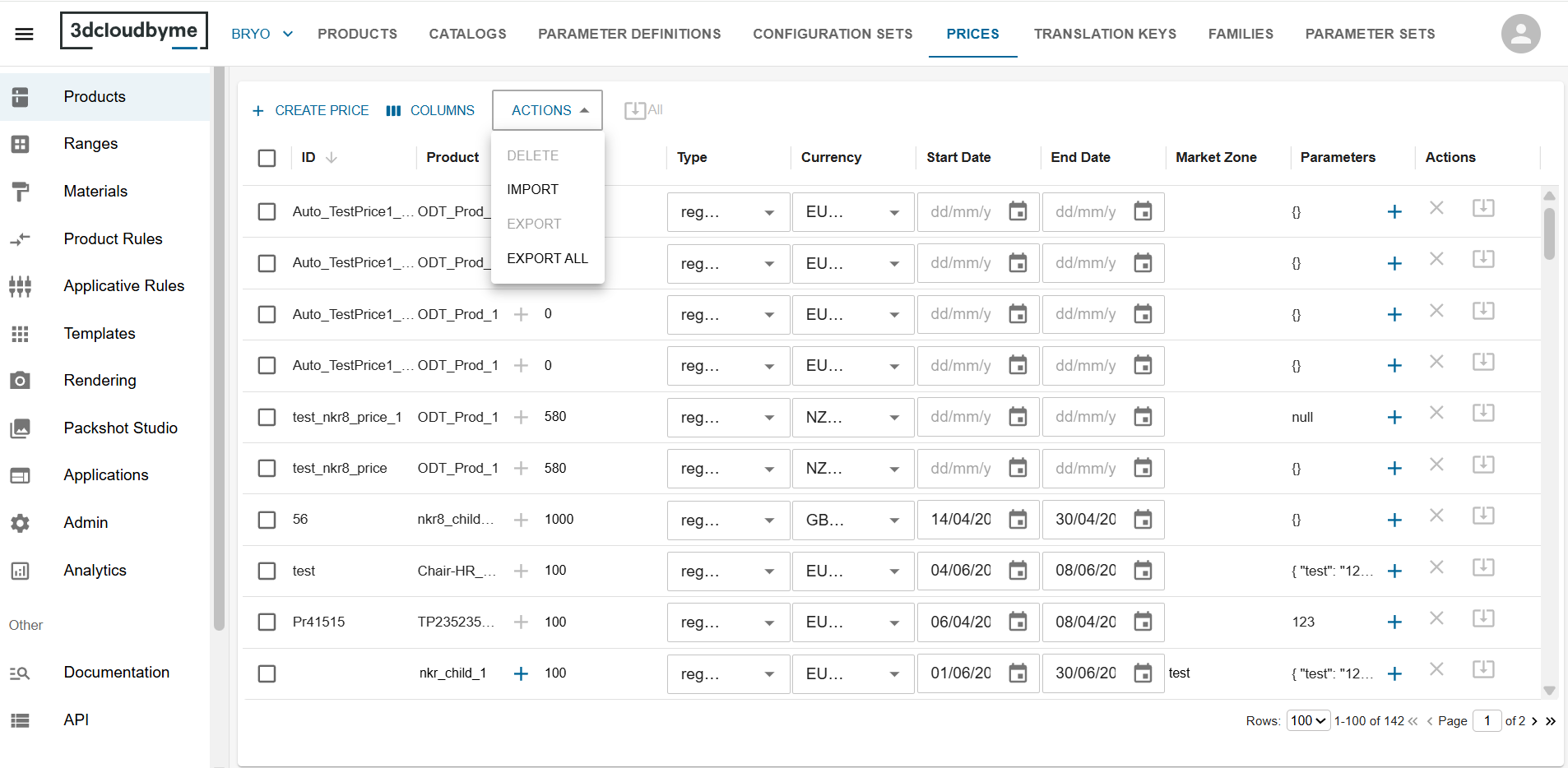
- Click ACTIONS and then click IMPORT on the Prices tab.
- Choose an Excel (.xlsx) or ZIP file that contains a sheet named Prices.
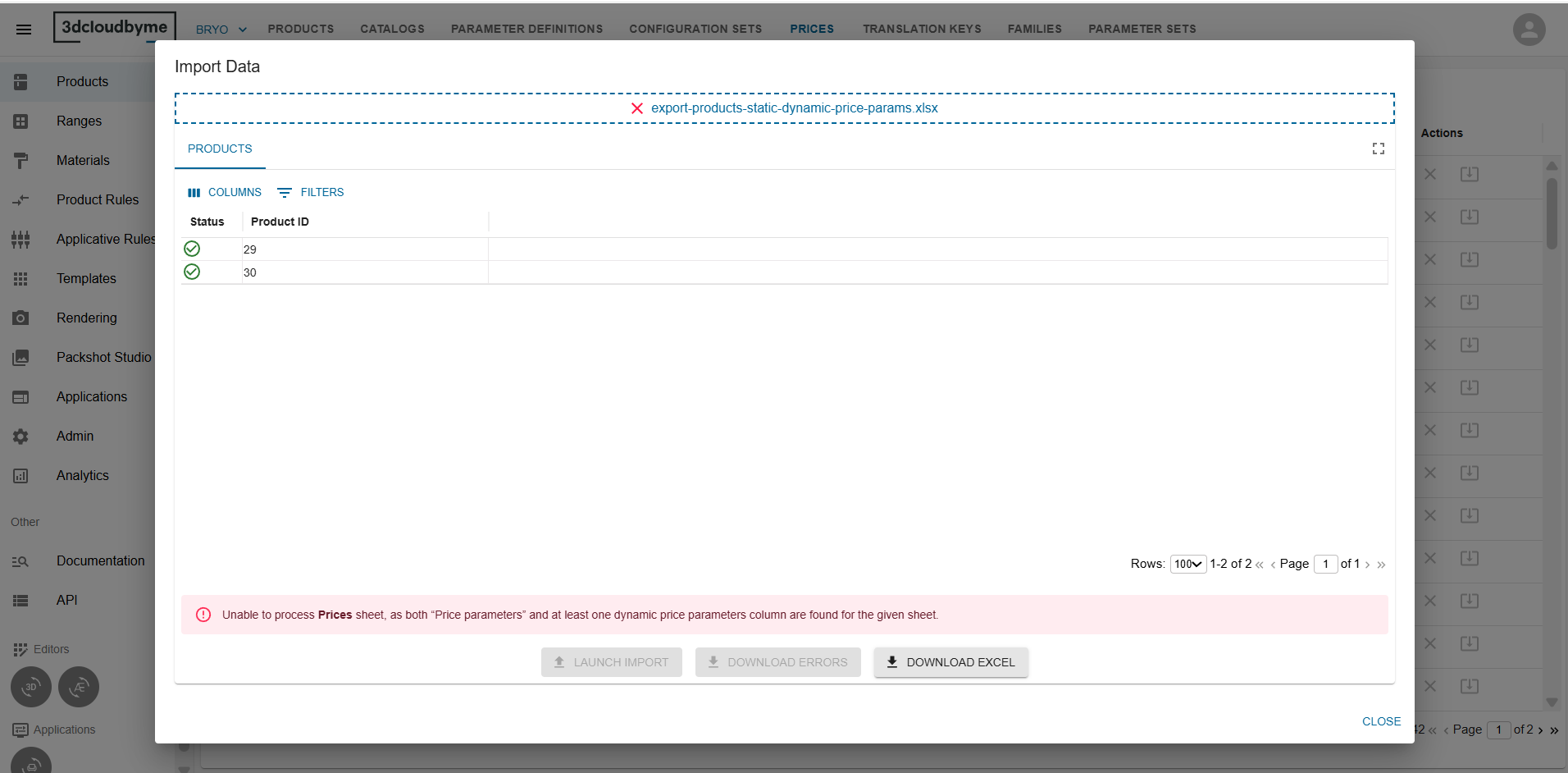
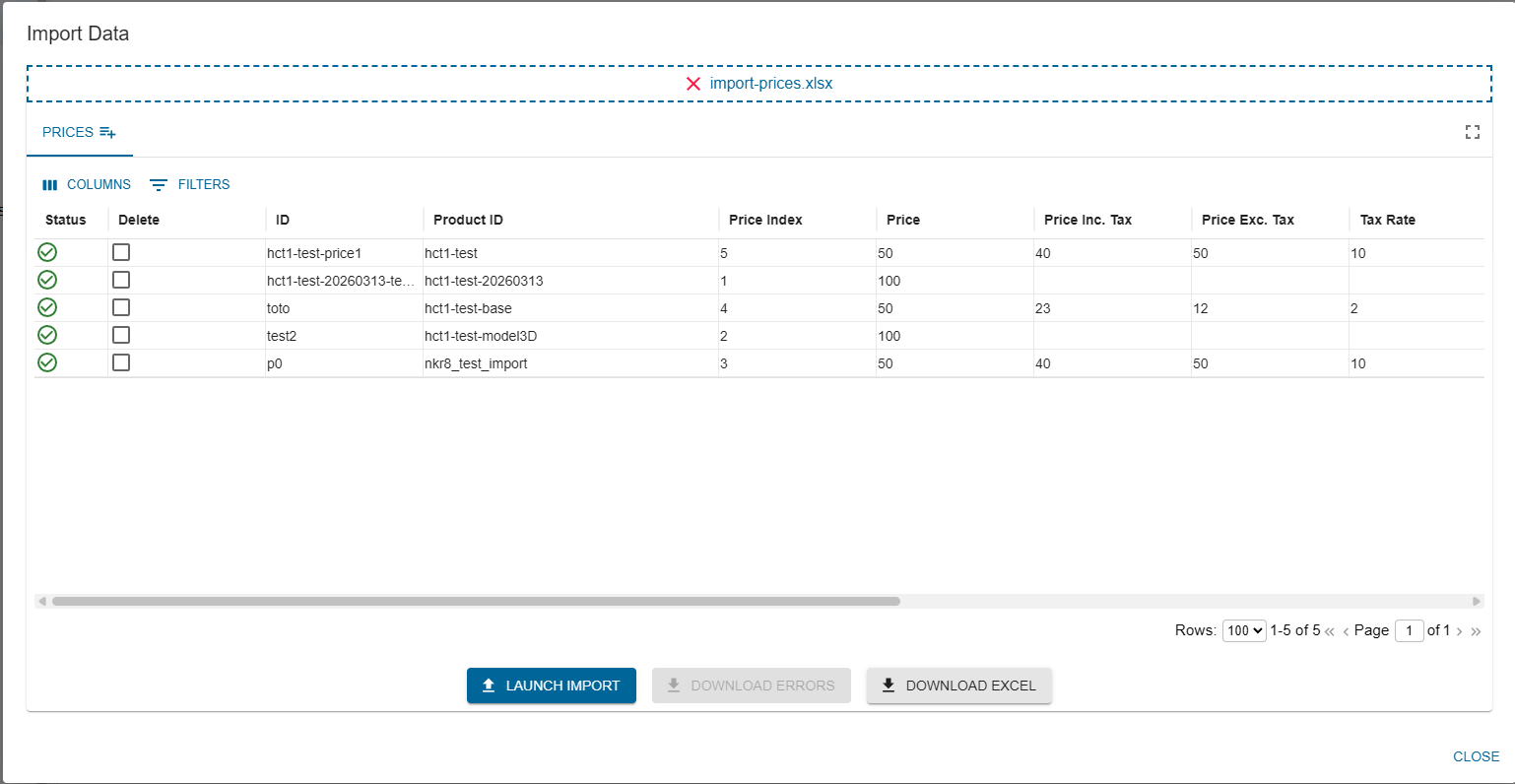
- The excel sheet data is presented in a editable grid format along with any warnings or errors if present.
- Click LAUNCH IMPORT to import data.
The Prices sheet supports the optional columns Price Inc. Tax, Price Exc. Tax, and Tax Rate (0-100). See Product Price import for the full list of supported headers.
When you import a Prices sheet you have two ways to tell the system about the “price parameters”: static and dynamic price parameters. Both ways achieve the same end result: adding a priceParameters object to the price but they differ in how you work with the Excel file.
Static “Price parameters” column
You have only one column to deal with, called priceParameters that contains a JSON string. One has to add a single JSON string for each price row. It is fastest for bulk migrations, but any typo kills the whole row.
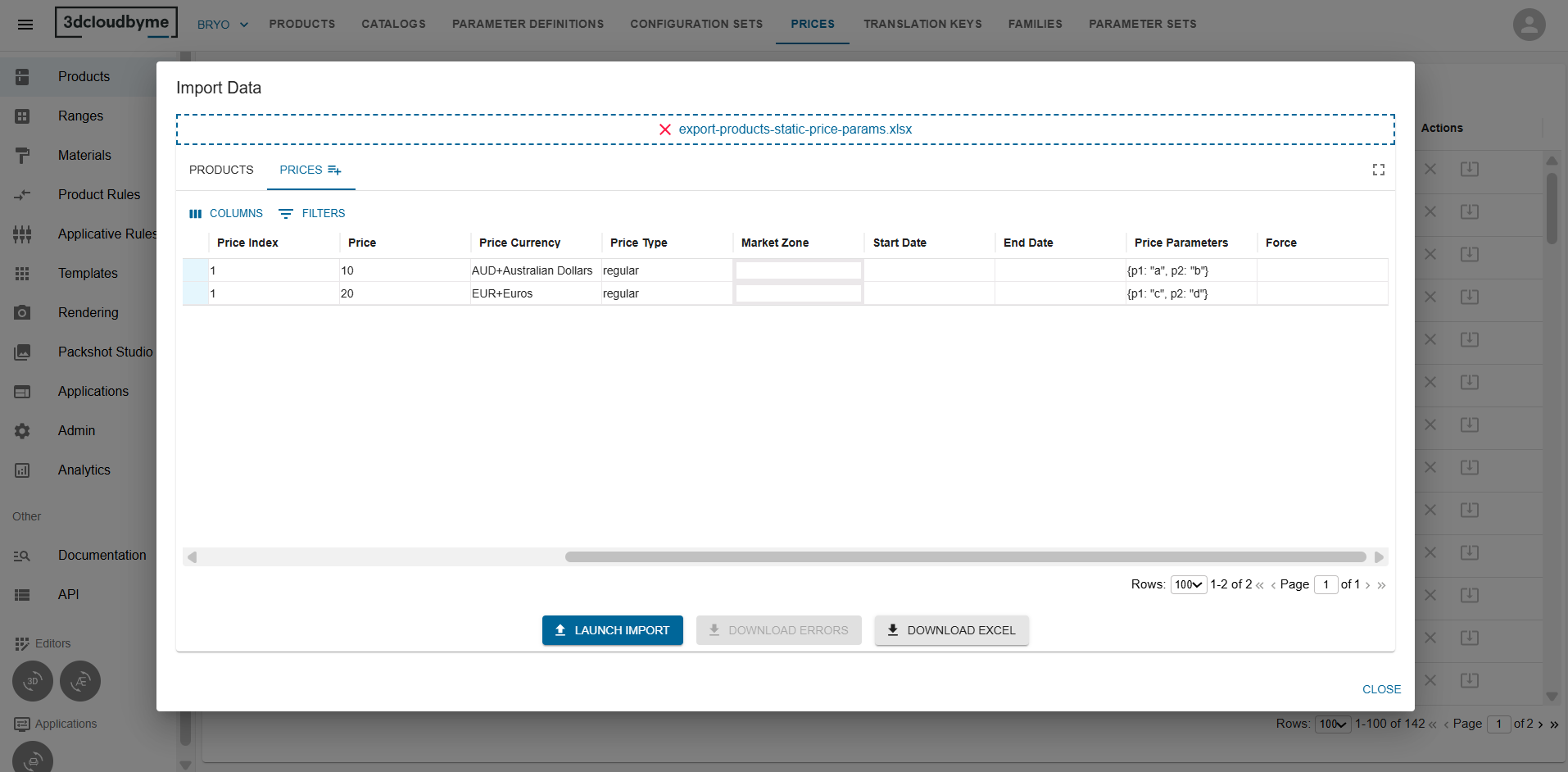
Dynamic "Price parameters" columns
In this case, you have one column per price parameter. One needs to fill each cell with the value that belongs to that parameter. The column header tells the system what type to expect. The column header format is:
<price parameter name> (price parameters - <type>)
<price parameter name>: any alphanumeric string (no spaces).<type>: one ofnumber,boolean,string,object,auto.- The type part is optional. If omitted the type defaults to auto.
This way it is easier to edit in Excel, gives you per-cell validation, and lets you add new parameters by adding columns.
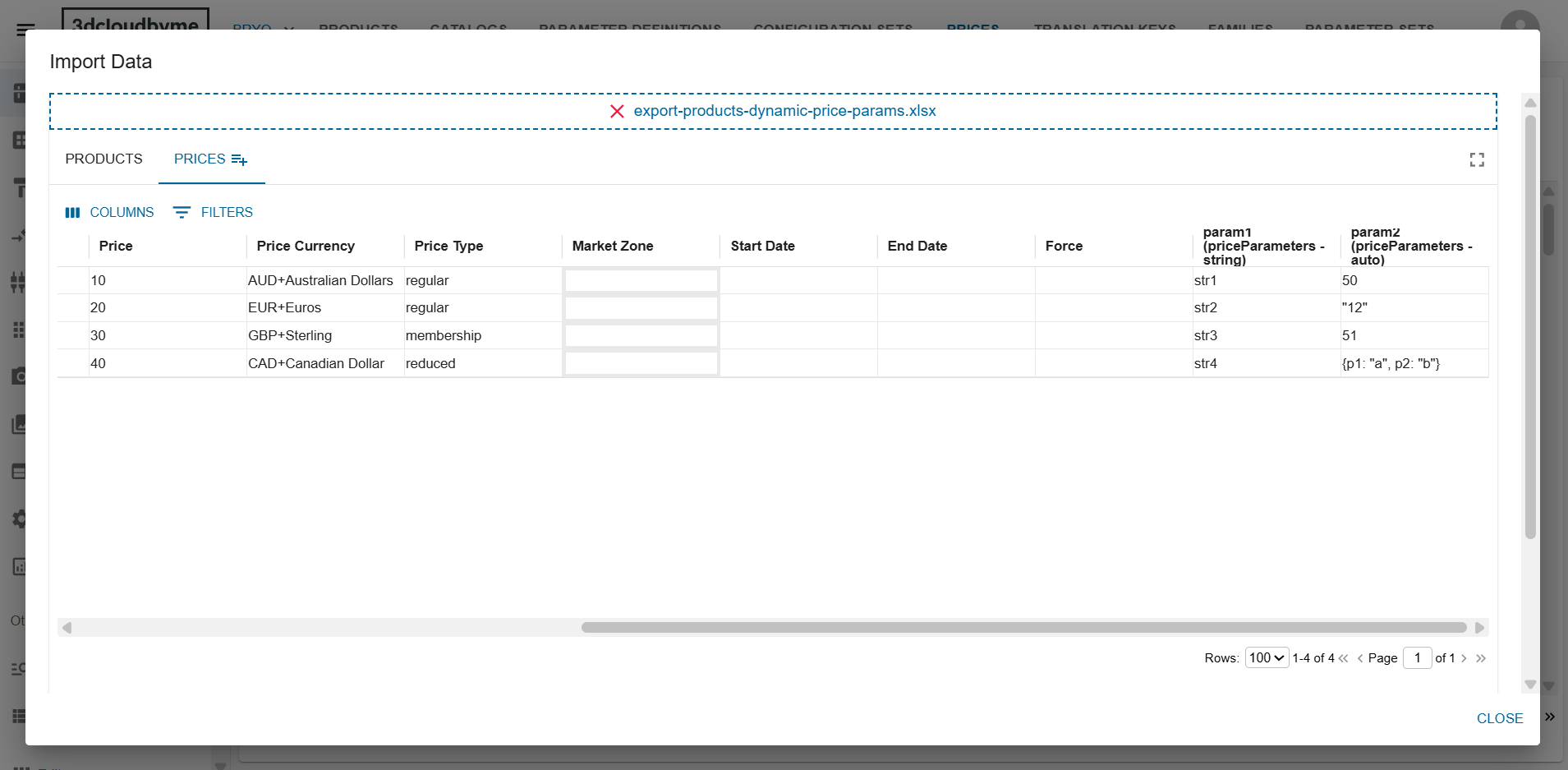
Note: If the "Prices" tab in the excel contains both “Price parameters”(which is a static price parameter column) and at least one dynamic price parameters column, the excel is rejected.