Parameter Definition
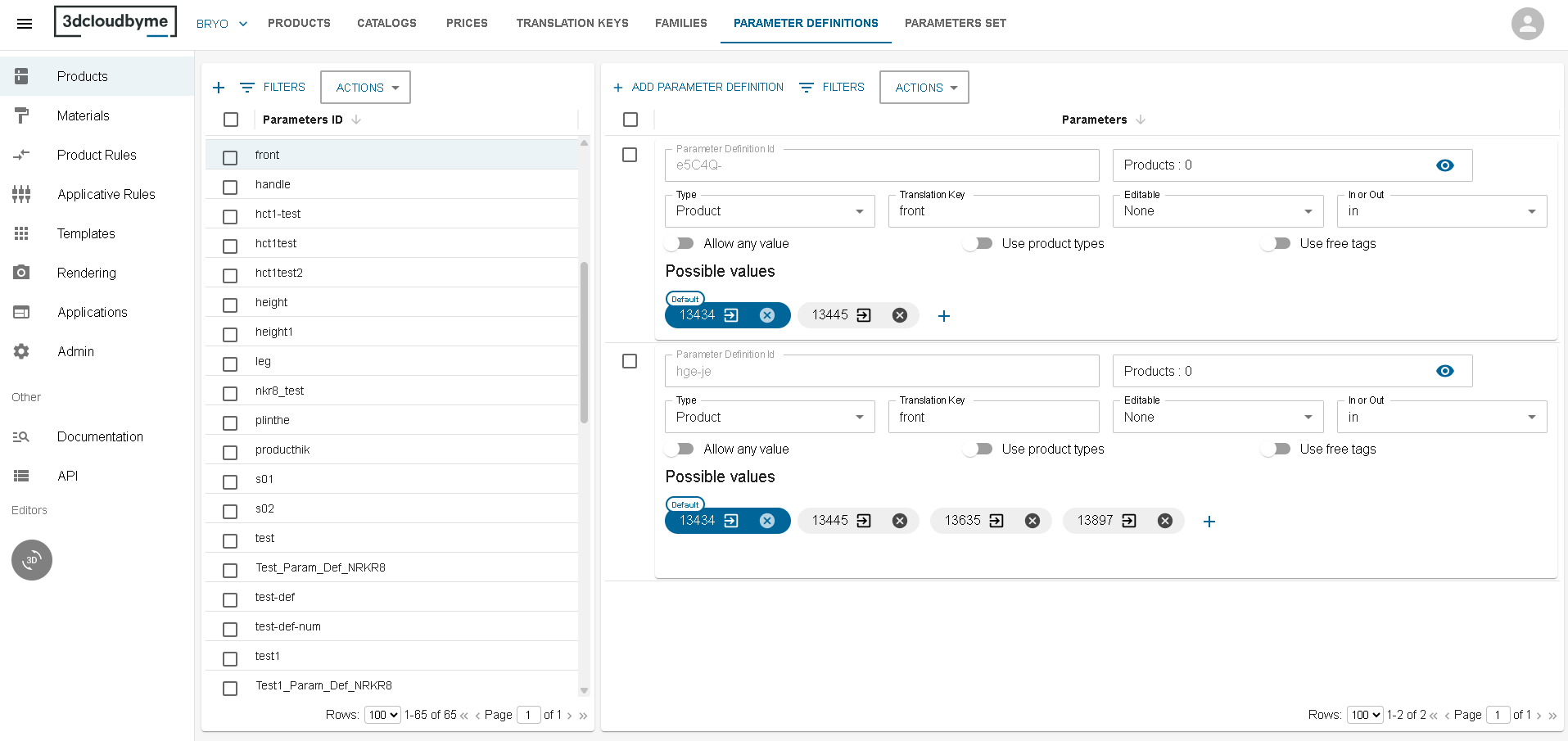
Parameter Definition is the representation of a parameter for products but declared outside.
The main purpose of this object is to reduce the time creating over and over the same parameter on several products. Beside its id, a parameter definition is absolutely the same as a parameter inside a product. Here is the documentation.
It is possible to create several parameter definition with the same parameter ID, only the id is unique on the Legal.
Parameter Definition Dashboard
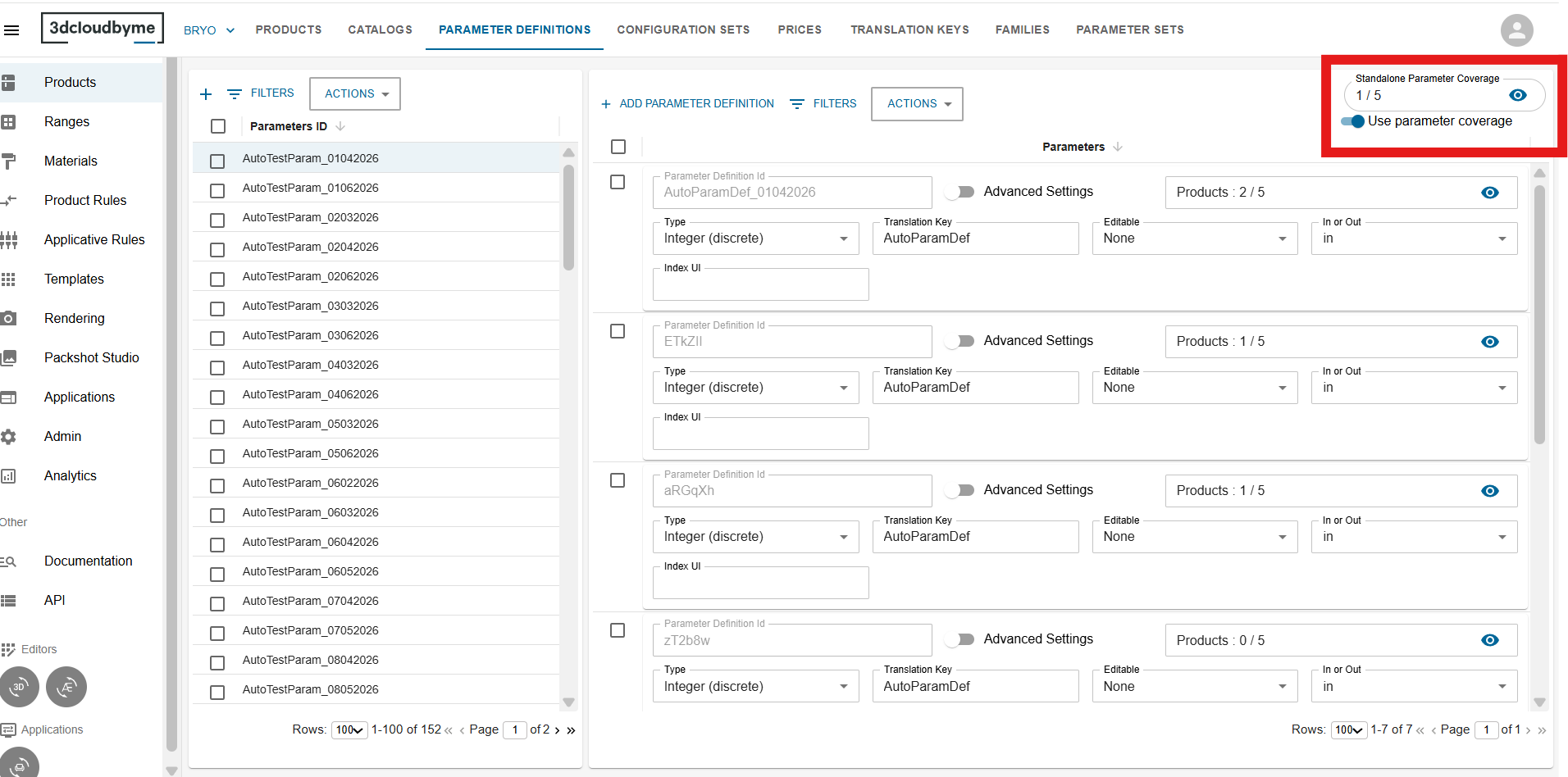
The dashboard has few updated labels for better understanding.
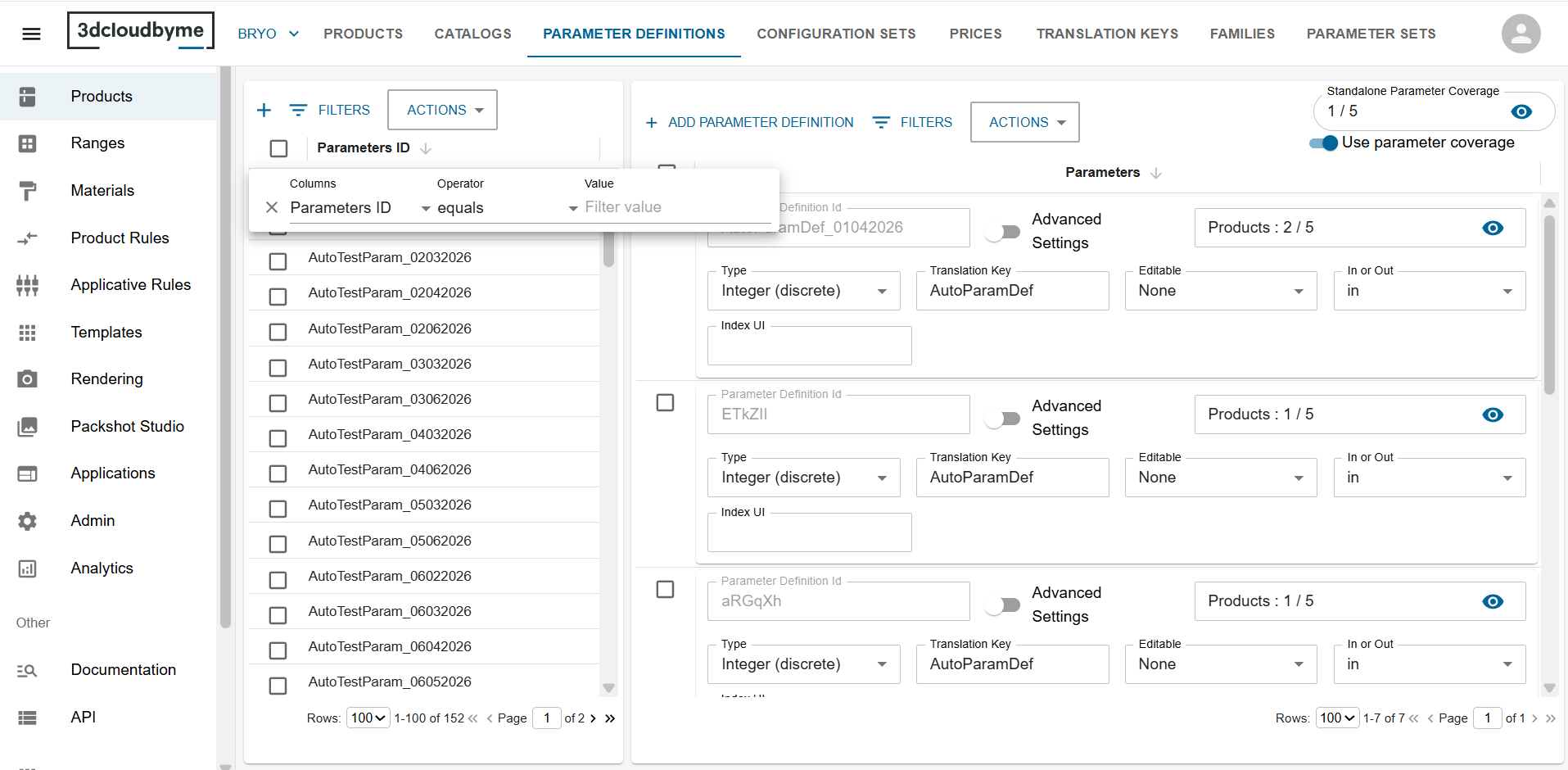
New filter operator : equals
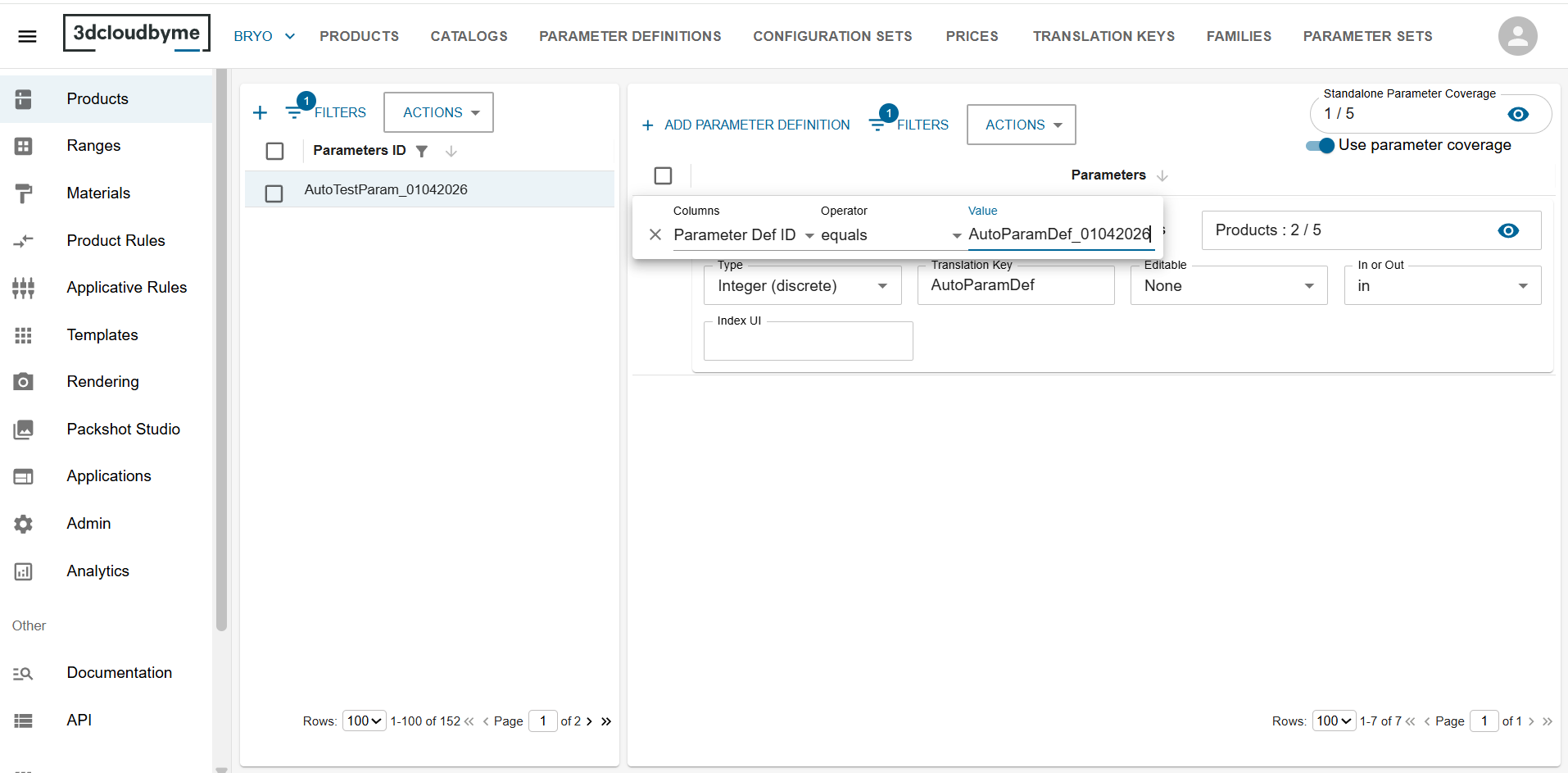
Both tables in the dashboard (the left Parameter ID table and the right ParameterDef ID table) now support an equals operator.
- Click the filter icon on the column header.
- Choose
equalsfrom the operator dropdown. - Type the exact ID you want to locate (e.g.,
priceDiscountorPD-12345). - Press Enter and the table instantly narrows to the exact match.
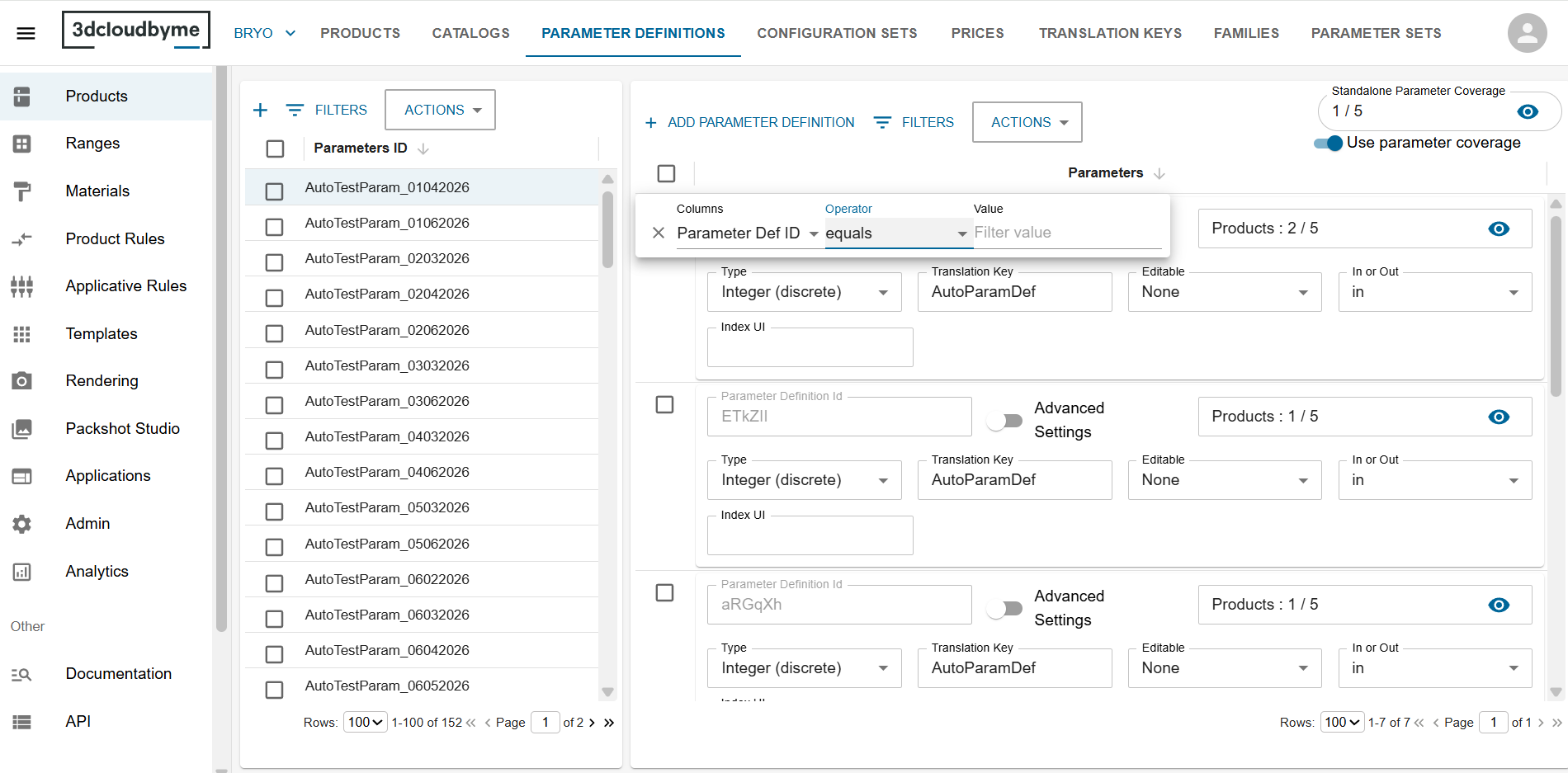
The
equalsoperator is case-sensitive and matches the whole string, making it perfect for pinpointing a single definition.
Updated Default value validation
When you edit a parameter definition for type Product , the Default value field references a product ID.
The validation logic has been refined:
| Situation | What you see | Effect on saving |
|---|---|---|
| Product ID exists in the current legal | No warning | Save succeeds |
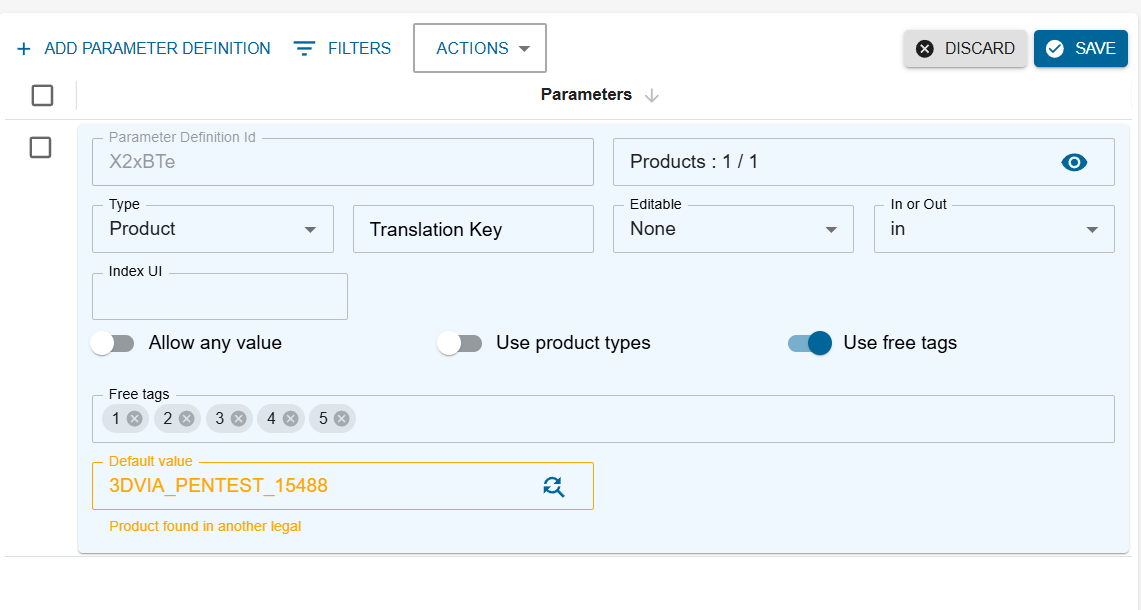
| Product ID exists in another legal | A warning appears below the field: Product found in another legal | Save succeeds |
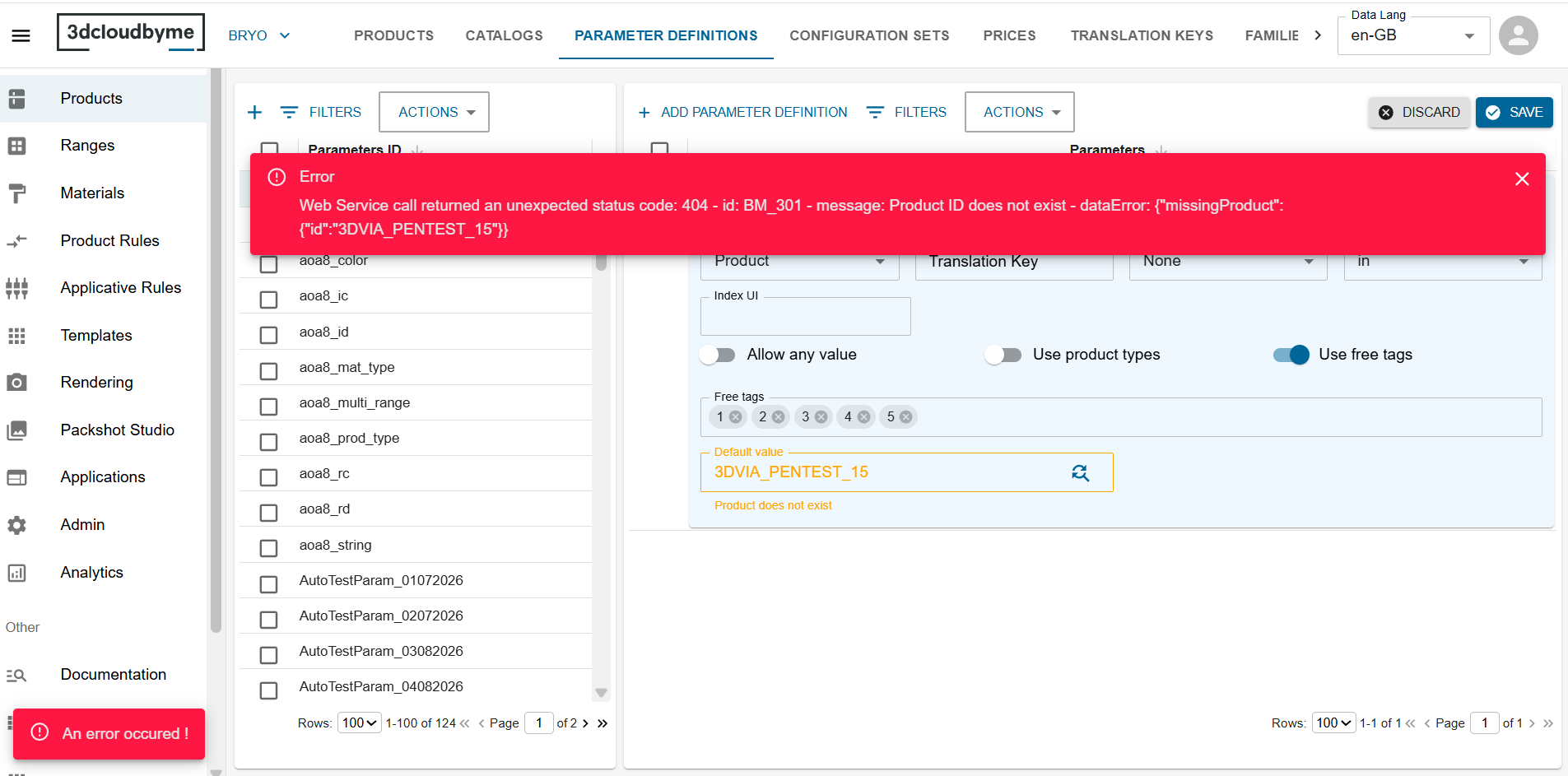
| Product ID does not exist anywhere | A warning appears below the field: Product does not exist | When you click Save, a web-service error banner appears and the save is blocked. |
Product Parameter Coverage Dialog
When you open the dialog from the dashboard, the title now displays the actual Parameter ID you are inspecting, e.g.:
Product Parameter Coverage: priceDiscount
Table layout changes
| Column | Default visibility | What it shows |
|---|---|---|
| Catalog | Hidden (you can reveal it via the column-visibility menu) | The catalog(s) the product belongs to. |
| Parameter Definition ID | Visible | The Parameter Definition ID that the product is linked to for the current parameter. If the product uses a stand-alone parameter, the cell stays blank. A stand-alone parameter is a parameter that lives only on a single product. It is not linked to any reusable Parameter Definition. |
| Other product columns (Product ID, Name, …) | Unchanged | Same as before. |
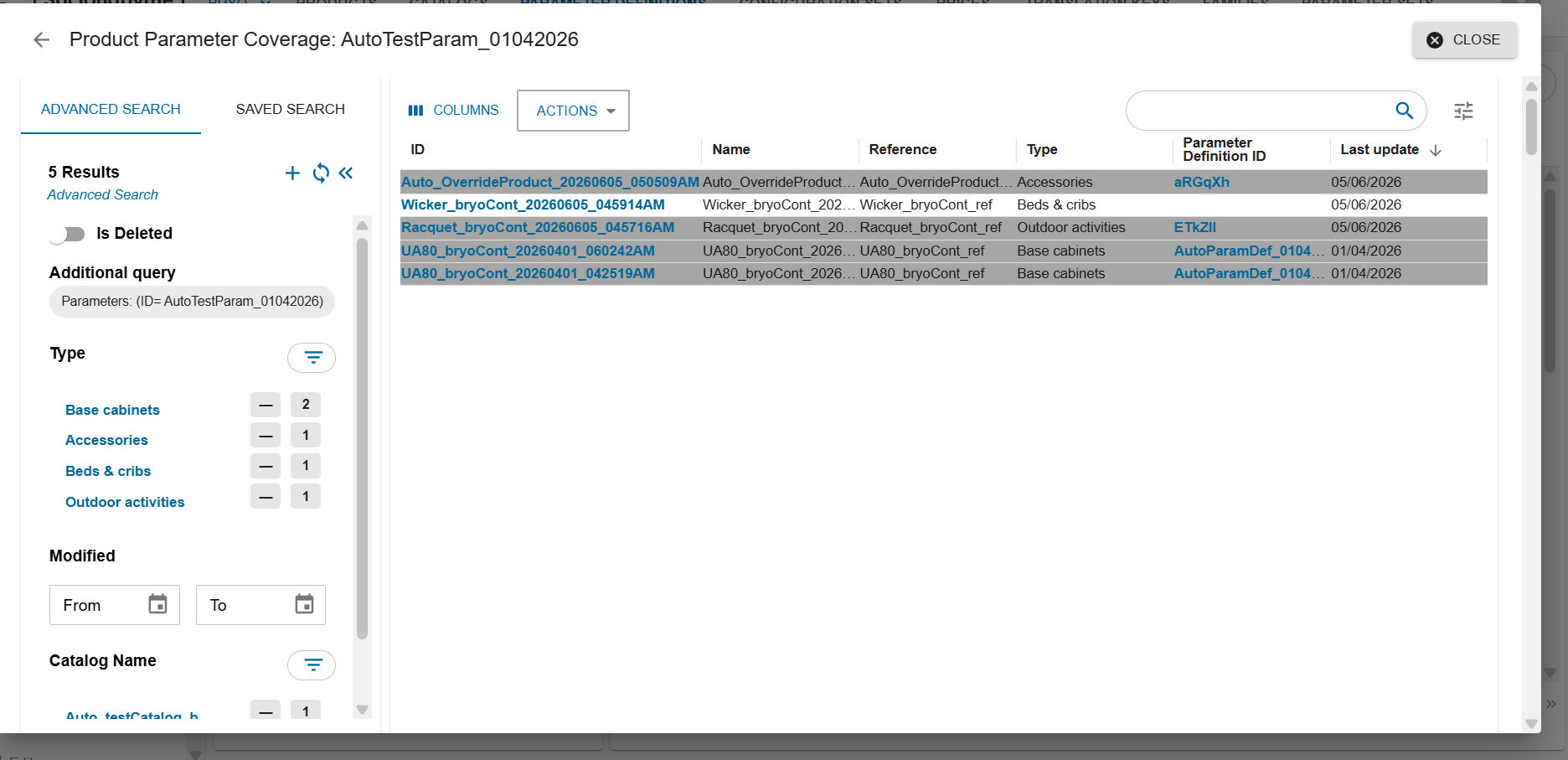
The Parameter Definition ID values are rendered as blue links. Clicking a link opens the Parameter Definition Dashboard with two pre-filters already applied:
| Pre-filter | Value |
|---|---|
| Parameter ID | The parameter you are currently viewing in the dialog (the <parameter-ID> in the dialog title). |
| Parameter Definition ID | The ID you clicked. |
This takes you straight to the definition that the product is using, so you can edit it without any extra searching.
Export All
Inside the Product Parameter Coverage dialog you can now export the list of products. To use the "export all" feature, please follow below steps:
- Open the Product Parameter Coverage dialog from the Parameter Definition dashboard
- In the dialog, click ACTIONS and then click the EXPORT ALL button
- The excel file gets downloaded. One can refer the “Parameters” tab in the excel to view the exported data.
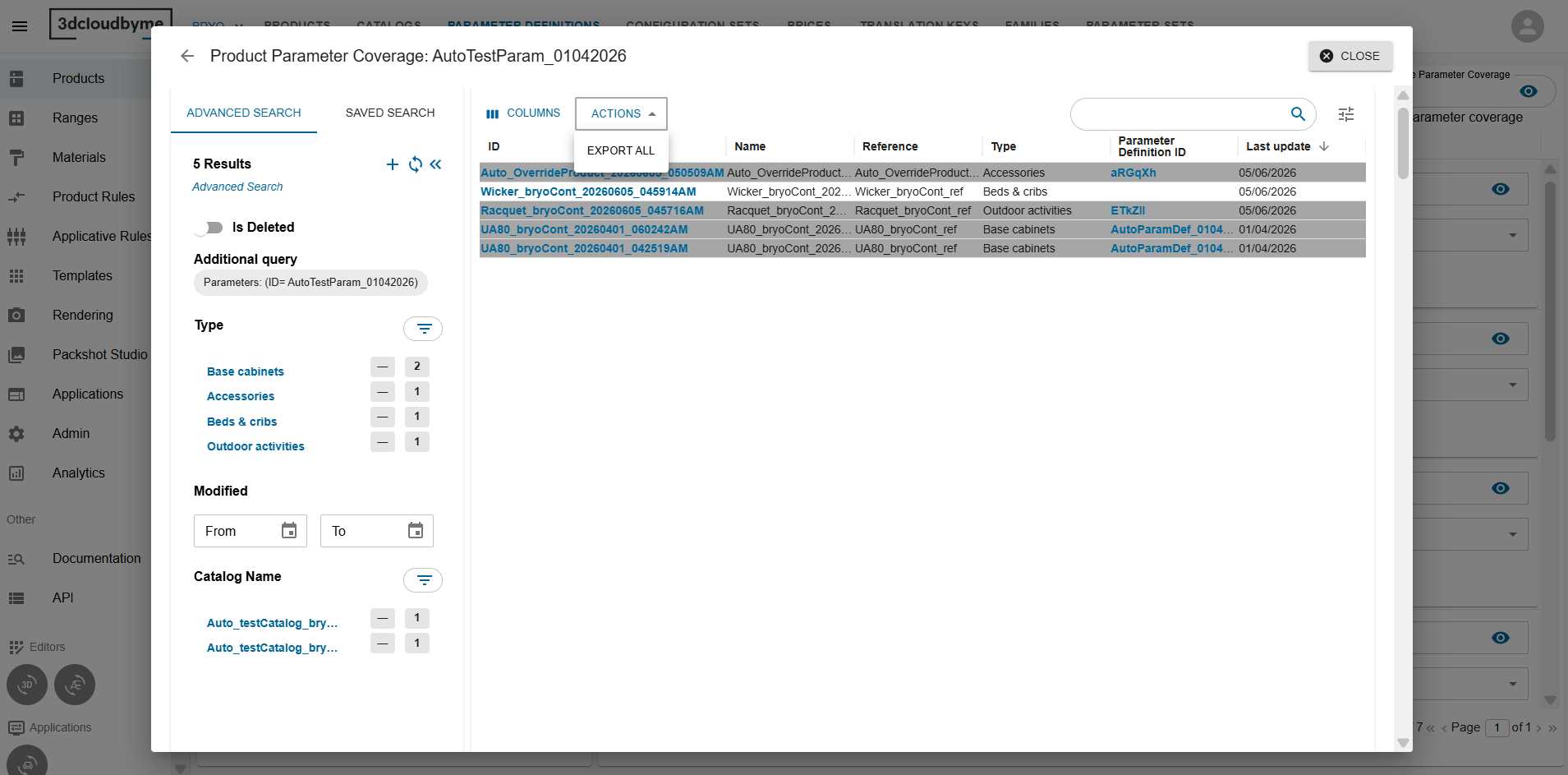
For every product listed in the dialog, you will see all possible parameter related information in the exported sheet. The screenshot below shows a sample:
