Export Preset Management
Introduction
Export presets are a collection of predefined export settings that show up in the export dialog, allowing you to share or apply a saved setup with just one click. The preset export feature speeds up repetitive exports and ensures consistency across projects.
Process
Open any export dialogs to find export preset management options
- Preset area: placed in the sticky zone at the top of every export dialog.
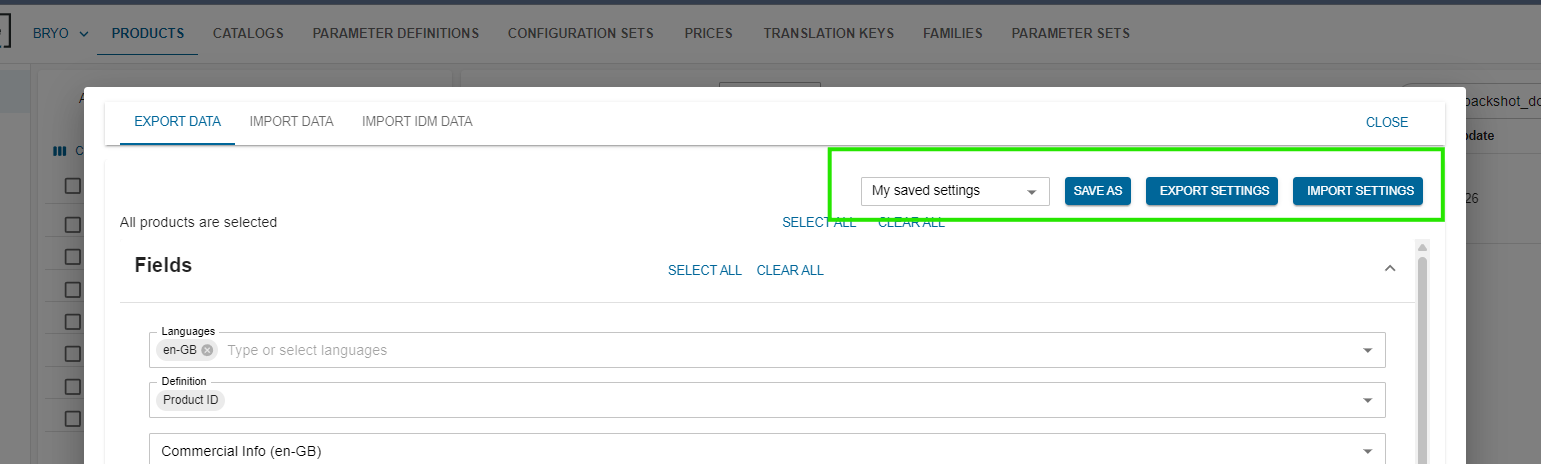
- My saved settings:
- an autocomplete field that lists all presets you've saved.
- Selecting a preset instantly fills the export form with the saved settings.

- Save As:
- Click save as button to open My saved settings Dialog

- My saved settings : the same autocomplete list, but you can also type a new name for the preset.
- Cancel : closes the dialog without saving.
- Save / Update : stores the current export form's selections under the entered name.
- If the name already exists, the button label changes to Update and the existing preset is overwritten.

- Click save as button to open My saved settings Dialog
- Export Settings : downloads a JSON file that contains the current export form's selections.

- Import Settings :
- opens the file-picker so you can choose a JSON file you exported earlier.

- If the file matches the expected structure, its settings are applied automatically.
- If the file is invalid, an error message is shown.
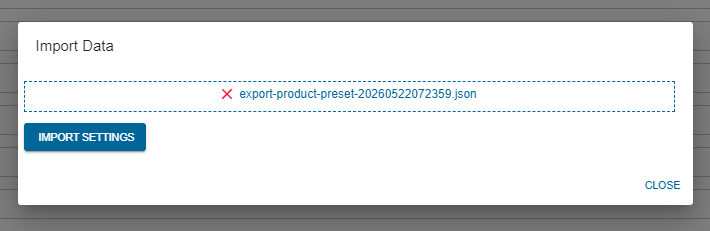
- opens the file-picker so you can choose a JSON file you exported earlier.